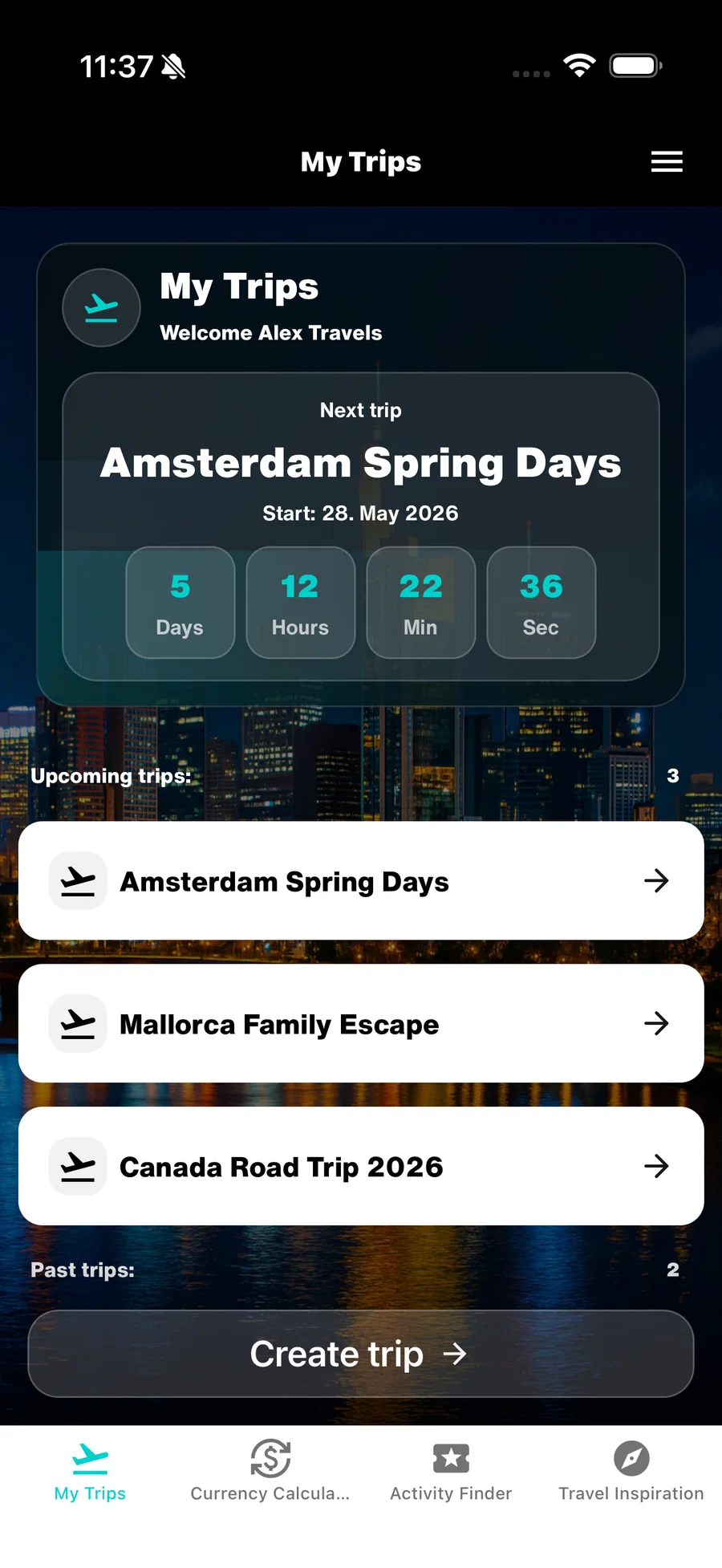
Trip Map & places
Organize your Trip Map and places
The Trip Map connects the places in your journey with the relevant days. It helps you plan a route before departure and stay oriented while travelling.
After this guide
You will know which places are worth saving, how they connect with DayCards and how to use the Trip Map for your journey.
1. Use the Trip Map as a spatial overview
The Trip Map shows the places associated with your journey. You can quickly see where you are going or which stops you have already visited.
The right level of detail depends on the type of trip. For a road trip, stages, overnight stops and key stops are particularly useful. For a city break, the places that shape each day are usually enough.
- Save places that matter for the route, accommodation or daily plan.
- Use the map as an overview rather than a complete list of every café you visit.

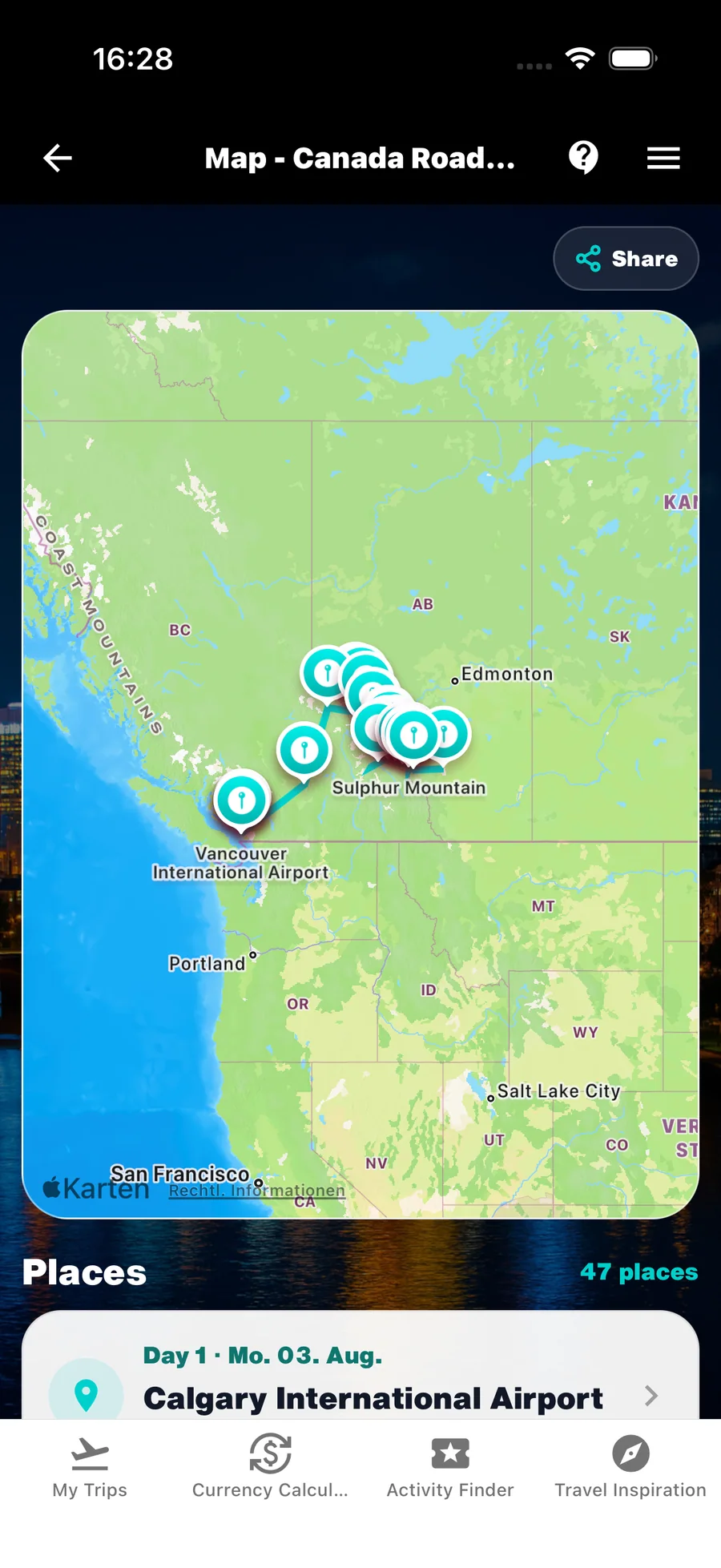
2. Add places to your trip
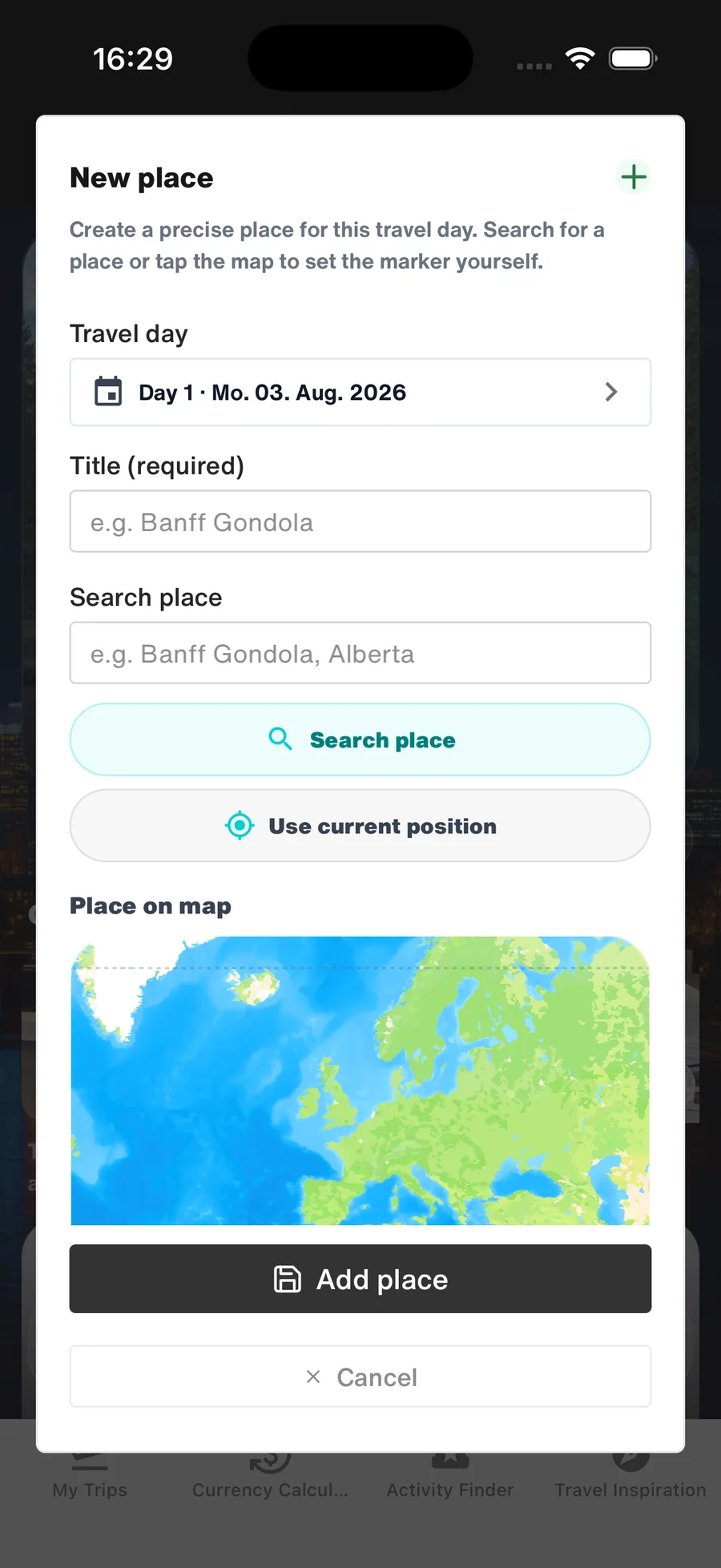
Add a place as soon as it becomes part of your plan or matters while travelling. It might be a hotel, viewpoint, airport, attraction or meeting point.
Open the round plus button at the bottom right and choose Place. Add enough information to recognize the place later.
- Start with the places that define your route or overnight stays.
- Add other places only when they matter to your daily plan or memories.
3. Assign places to the relevant travel day
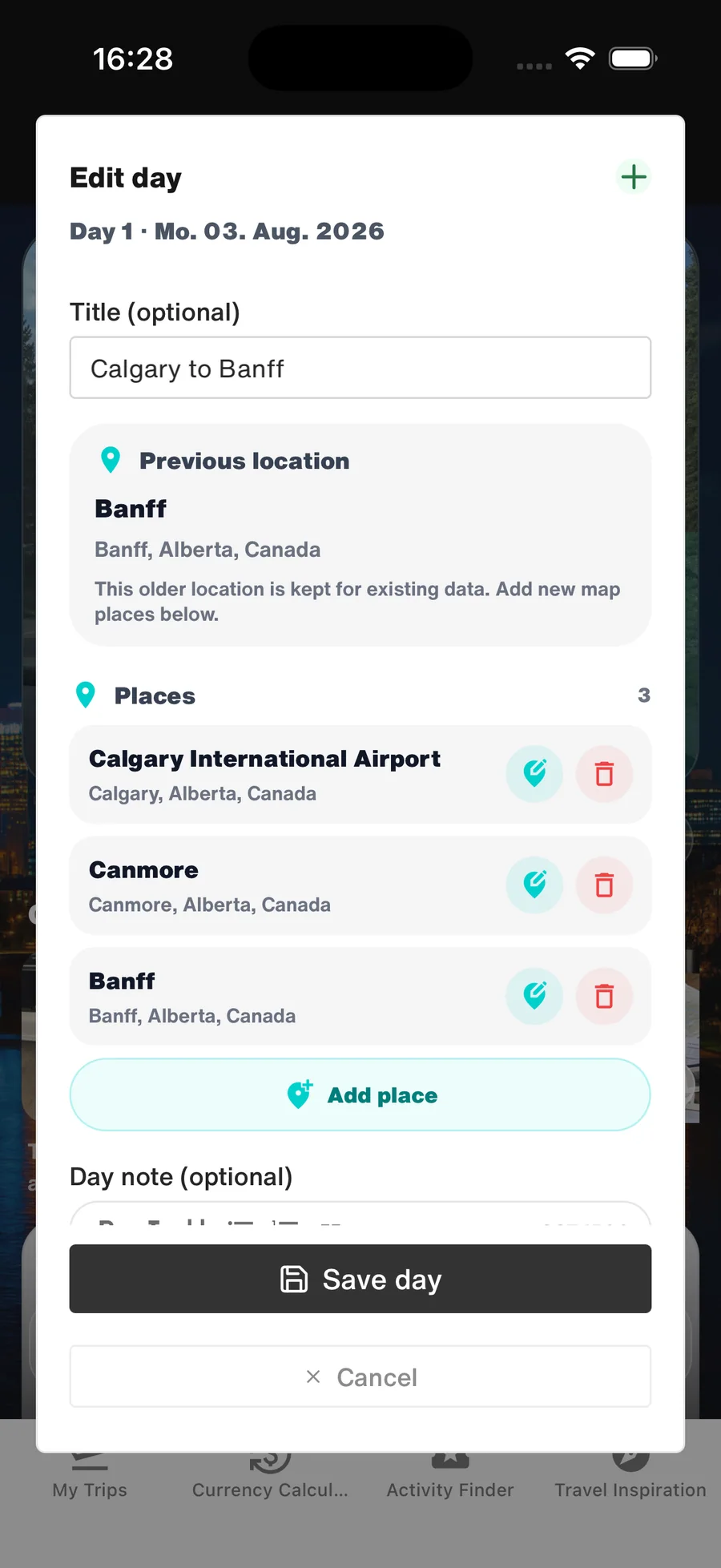
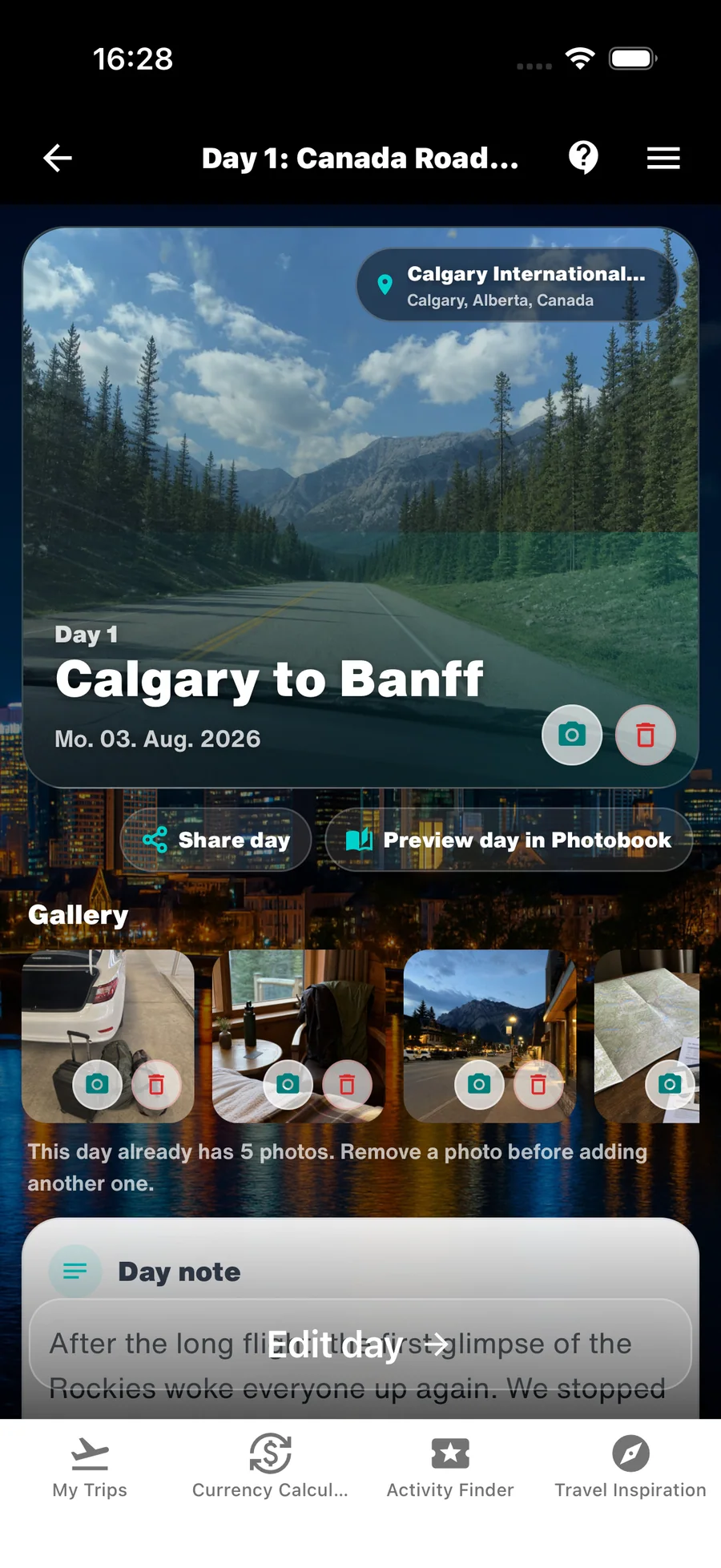
Assign a place to the day when you visit or stay there. It will then appear in both the DayCard and the chronological flow of the journey.
You can add places directly in a DayCard. This is particularly useful when completing the day in the evening or adjusting a plan while travelling.
- Add airports and accommodation to the relevant travel days.
- Assign attractions and stops to the day when they actually take place.
4. Keep the route deliberately clear
A clear Trip Map is more useful than the most complete possible map. Focus on the places that explain the journey: important stages, accommodation, planned activities and special memories.
If plans change, simply adjust places and their assigned days. The map and DayCards will stay up to date.
- Review the next stages regularly on longer journeys.
- Remove places that are no longer part of the trip.
Help by feature
- Use WanderSpend before, during and after a tripStep-by-step instructions from creating a trip to memories and your Photobook.Open tutorial
- Documents, notes and checklistsKeep bookings, tickets and practical trip details together.Open tutorial
- Trip TimelineTurn dates, places, notes and photos into a day-by-day story.Open tutorial
- Travel budget and expensesStay aware of spending without making money the focus of the trip.Open tutorial
- WanderSpend PhotobookSee how your timeline grows into an editable printed travel book.Open tutorial