WanderSpend Photobook
Design your WanderSpend Photobook
The WanderSpend Photobook turns your Trip Timeline into an editable travel book. The better your DayCards are prepared, the easier the final design becomes.
After this guide
You will know which trip content is used in the Photobook, what you can edit and when a print preview is created.
1. Review the trip before starting the Photobook
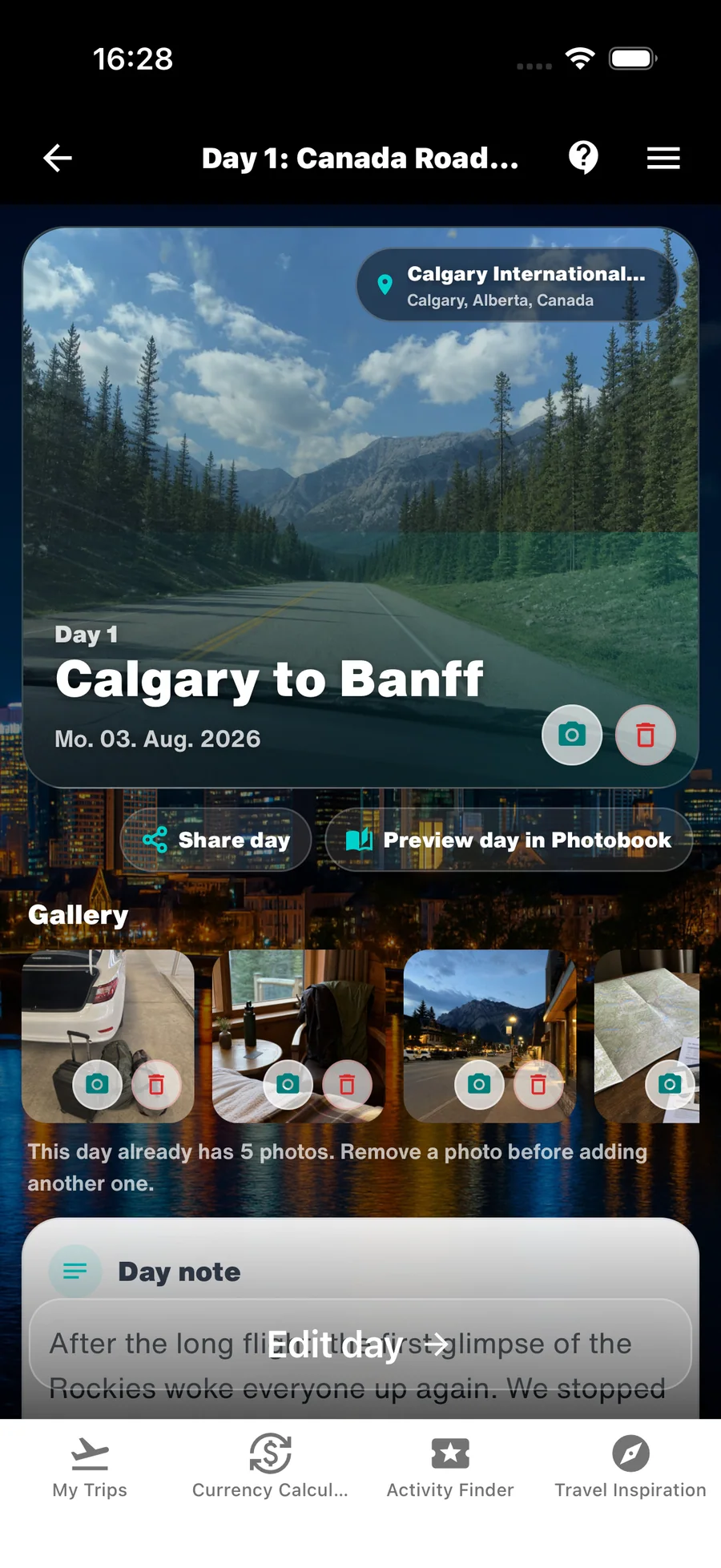
The Photobook is built from your Trip Timeline. Before starting, check the daily headlines, places and selected images in the trip.
Every travel day does not need the same amount of detail. What matters is that the important stages and memories remain recognizable.
- Add any missing daily headlines and places.
- Choose photos that matter to the story of the journey.

2. Customize the cover, map and day pages
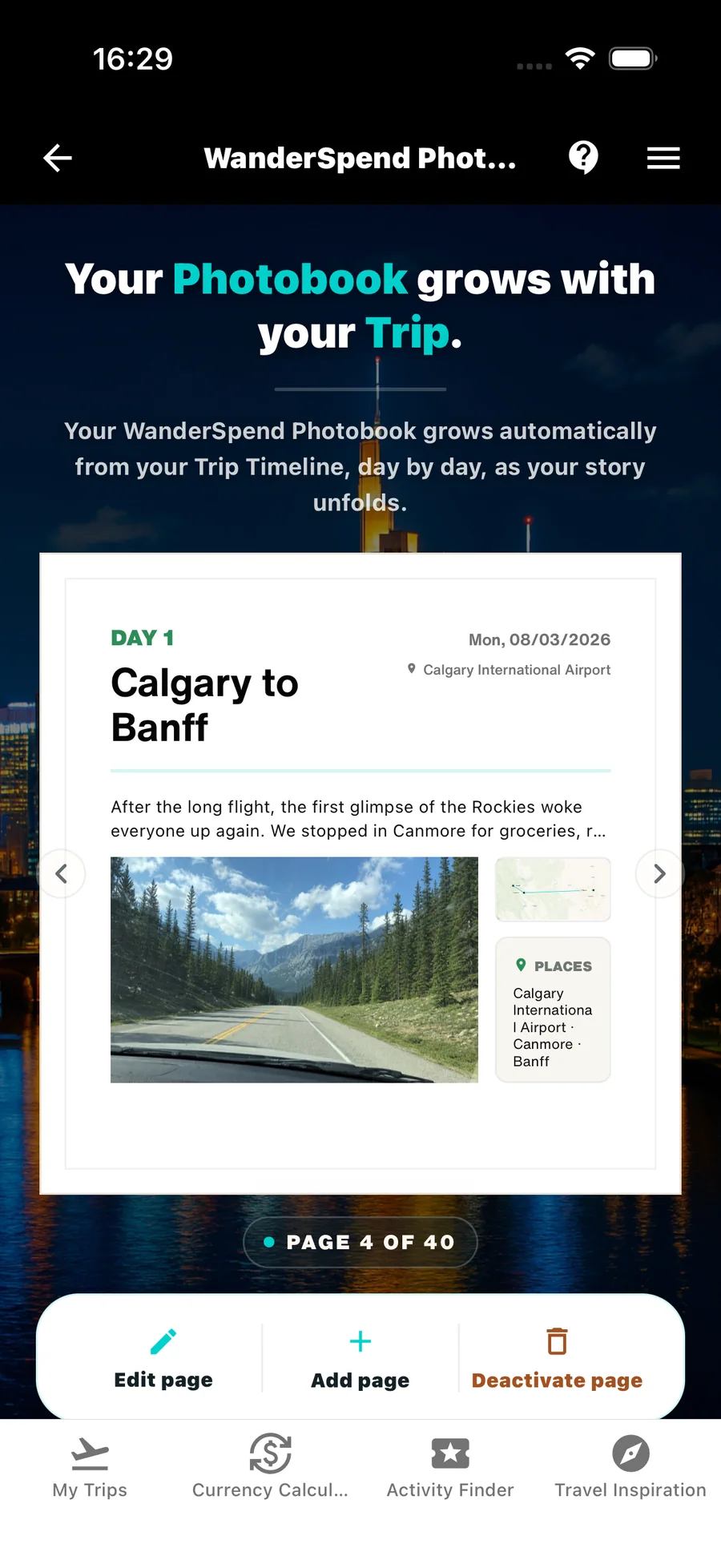
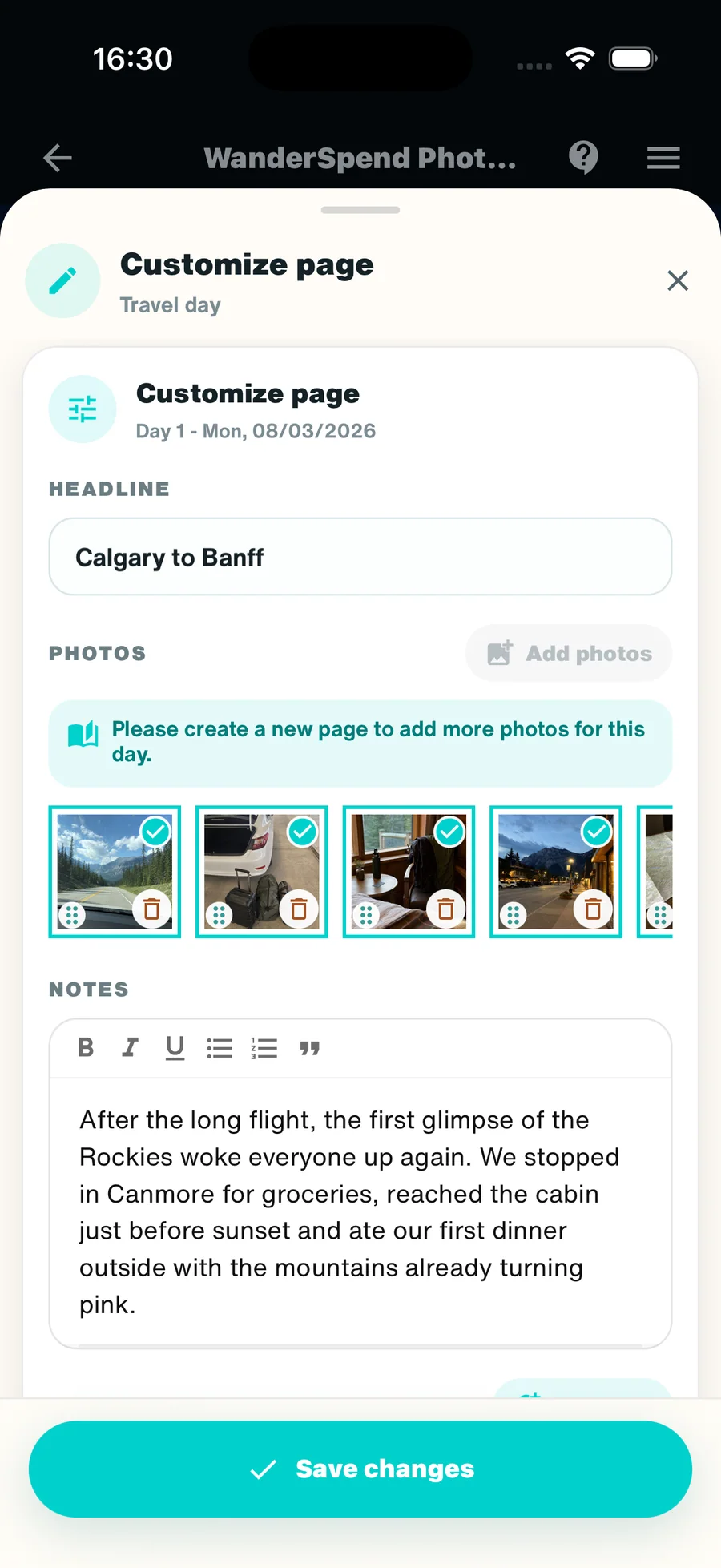
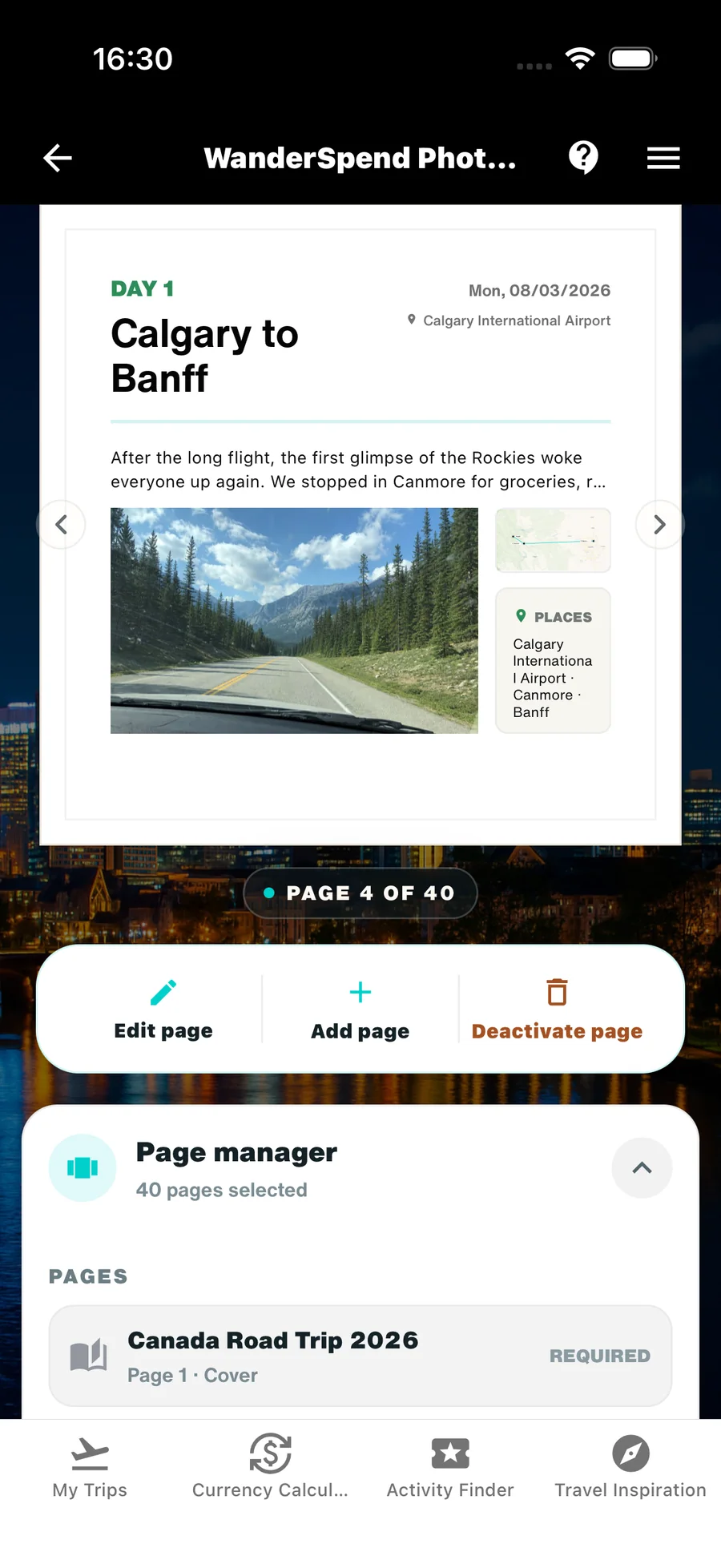
In the Photobook preview, you can adjust the cover, route map, day pages and photo selection. Optional budget and statistics pages can also be included.
Keep only the pages and images that contribute to the story. A calm, well-edited book is usually stronger than the most complete possible collection.
- Adjust the cover and route map to suit your trip.
- Check every day page for appropriate images and content.
3. Your Photobook data stays local while you edit
While you edit the Photobook, the preview stays on your device. You can review and adjust the content and selection in your own time.
Only when you explicitly create a print preview are the selected Photobook photos and page settings transferred for secure rendering.
- Take time to review the selection and order of the content.
- Create the print preview only when you are happy with the book.
4. Create the print preview with a stable connection
WanderSpend needs a stable internet connection to create the print preview. Check the pages, images and selected options once more beforehand.
The print preview is the final step before your travel book is prepared for printing.
- Create the print preview over a stable Wi-Fi or mobile connection.
- Review the book carefully before placing the final print order.
Help by feature
- Use WanderSpend before, during and after a tripStep-by-step instructions from creating a trip to memories and your Photobook.Open tutorial
- Documents, notes and checklistsKeep bookings, tickets and practical trip details together.Open tutorial
- Trip Map and placesBuild a visual route and connect places with travel days.Open tutorial
- Trip TimelineTurn dates, places, notes and photos into a day-by-day story.Open tutorial
- Travel budget and expensesStay aware of spending without making money the focus of the trip.Open tutorial